Add real icons and stock photos to your forms — never AI-generated
A searchable icon library and royalty-free stock photo search, in the manual builder and in AI Generate. Real photography, real icons, no synthetic imagery, ever.
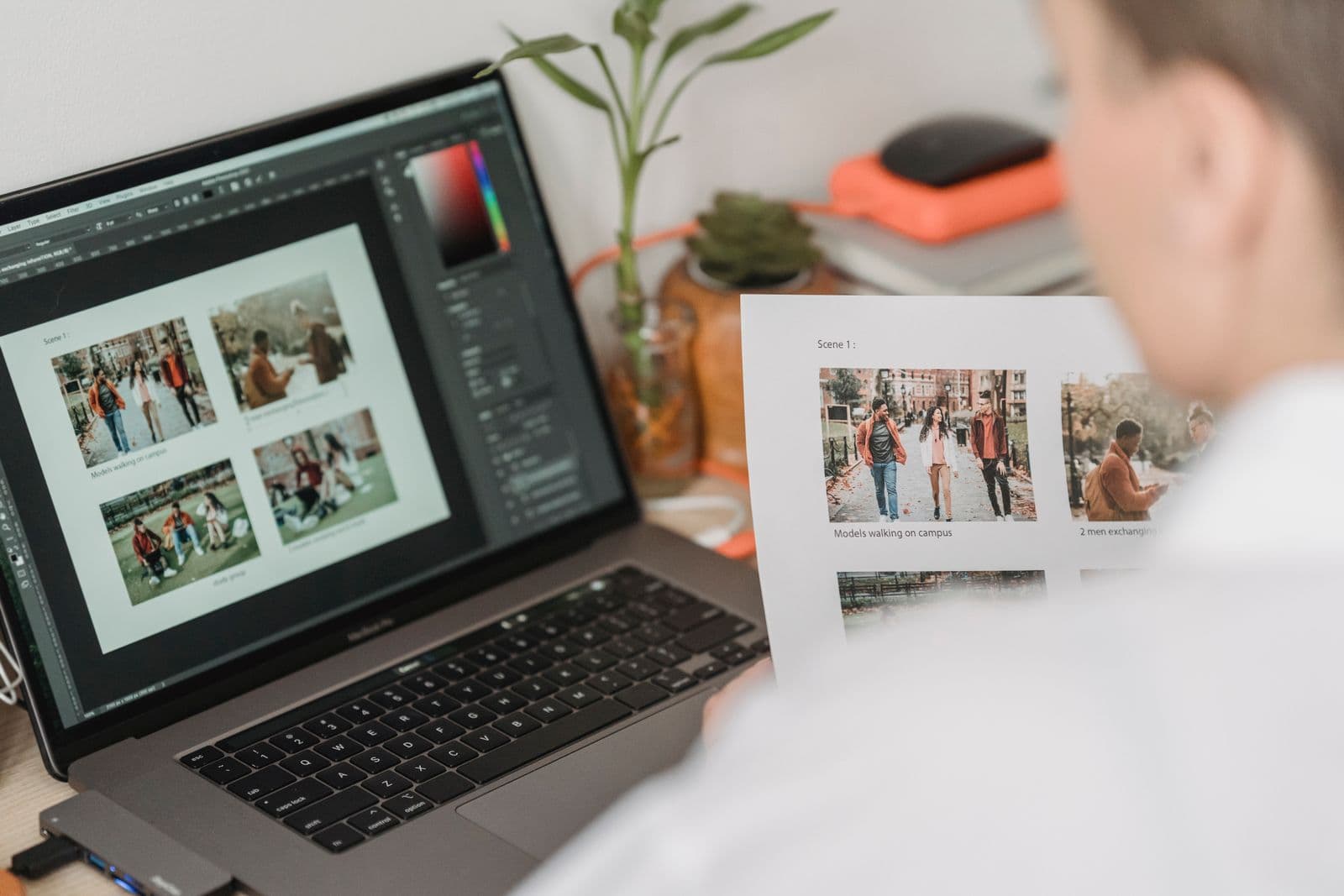
A paw-print icon next to a pet-adoption question. A real photo on a volunteer sign-up form. A tick mark to soften a dense consent section. From today, you can add all of it straight from the toolbar — a searchable icon library and royalty-free stock photo search, built right into the editor.
What's new
Click the Image button in the toolbar and you'll see three tabs: Upload your own file, exactly as before; Search photos, a live search across Pexels' royalty-free library; and Icons, a searchable library of roughly 1,900 vector icons. All three land on your canvas the same way — sized, positioned, and ready to style.
Icons are vector, not raster — they stay crisp at any size, recolour to match your theme with one click, and add nothing to your file size. They render identically on the canvas, in your exported PDF, and on a published web form.
Click Image in the toolbar
Same button as before — it now opens a picker instead of going straight to a file upload.
Upload, search, or browse icons
Search stock photos by keyword, browse icons the same way, or upload your own file as always.
Describe it, or mark it decorative
Before it lands on the canvas, you'll be asked for a short description for screen reader users — or you can mark it purely decorative. There's no way to skip this step.
Available on every signed-up account
Icons and stock photo search are included on Starter (free), Growth, and Business — not held back for paid tiers only. The no-account free mode doesn't include it, since it needs an account to search against.
AI Generate can reach for it too
Ask AI Generate for a "volunteer sign-up form with a paw print icon by the pet section", and it'll find a real match from the icon library and place it for you. Ask for a photo — "a photo of someone filling in paperwork" — and it searches Pexels and drops in a real result, which you can always swap for something else afterwards.
Real images only
A logo you mention still starts as a placeholder, since there's no real logo to find — but a photo or an icon AI Generate adds is always a real one, found by search, never generated.
Real photography and real icons, always
Every image you add through FormGenius, whichever way you add it, is a real photograph or a real icon — never AI-generated. It's a choice we care about: we'd rather support real photographers and icon designers than replace them, and it means the imagery on your form — even for something as important as a referral, an application, or a consent notice — is always trustworthy and properly credited.
Accessibility, not an afterthought
Every image and icon requires either a written description or an explicit decorative mark before it can be inserted — never a silent default. Decorative content is kept out of the reading order automatically; meaningful content gets real alt text a screen reader can announce.
Open a new form and click Image in the toolbar to search photos or browse icons.
Try it in the builder